This short guide explains how to print an A5 ceremony booklet at home using an A4 printer and a correctly prepared PDF. You’ll learn how to use booklet print settings, choose the right paper options, and handle both duplex and non-duplex printers so pages print in the correct order.
The instructions below assume your PDF is already set up (pages in reading order, not imposed).
Before You Start
It’s best to check a few basics before printing:
- You have a PDF reader to open your document (we recommend Adobe Acrobat Reader).
- Your PDF pages should be A5 size (148 × 210 mm).
- You should be printing on A4 paper (297 × 210 mm).
- A short test print using plain paper can help confirm orientation before using final stock.
Page Count Requirements for Booklet Printing
Before you print, it’s important to understand how booklet printing works.
When you choose Booklet printing, the printer doesn’t simply print your pages in order. It rearranges them so that, once printed and folded, the booklet reads correctly. Because of this, booklet printing only works in multiples of four pages: 4, 8, 12, 16, and so on.
Each A4 sheet, printed on both sides and folded in half, creates four A5 pages. For example, the printer cannot produce a booklet with 14 pages exactly, even if your PDF contains 14 pages. Instead, it will automatically add pages to reach the next workable total.
If your booklet is 14 pages, here’s what happens:
- The printer treats it as a 16-page booklet
- 2 pages are added as blanks
- Those blank pages appear together in the centre of the booklet
This can be surprising if you expect booklet printing to match your page count exactly. The printer isn’t making a mistake — it’s completing the booklet structure so the pages can fold and nest correctly.
What This Means for DIY Templates
If you’ve downloaded a ceremony booklet template and filled in all 14 pages, selecting Booklet printing will still work — but the final folded booklet will include a blank centre spread unless the page count is adjusted.
To avoid unexpected blank pages, it’s best to:
- Check your total page count before printing
- Adjust the content so the final PDF ends on 12 or 16 pages
- Or plan in advance for intentional blank pages in the middle
Handling this at the PDF stage keeps the printed result predictable and prevents surprises once the booklet is folded.
Step 1: Open Print Settings
Open your PDF and go to:
File → Print
This opens the main print dialog where booklet options are controlled.
Step 2: Set Page Sizing and Booklet Layout
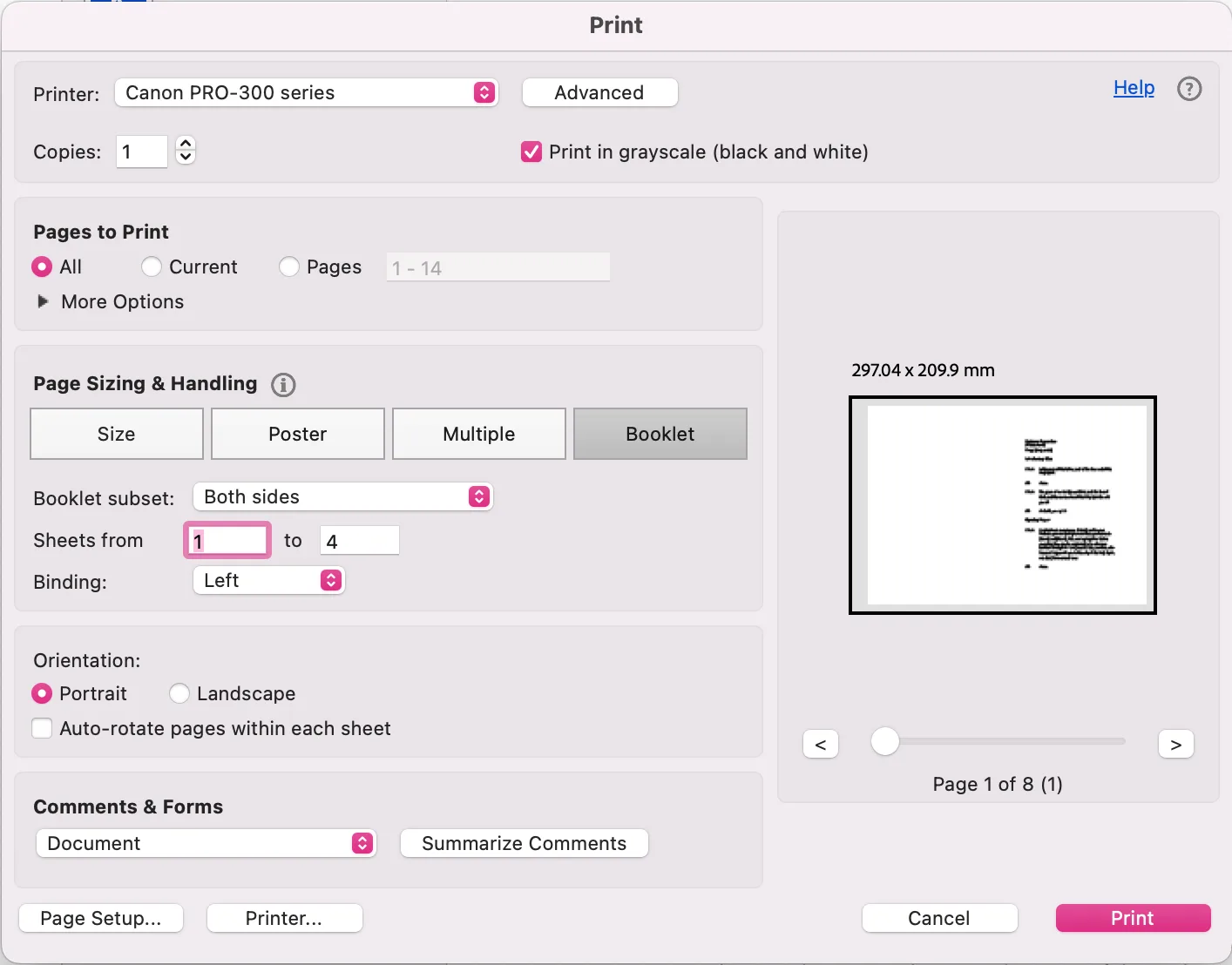
Under Page Sizing & Handling, select:
- Booklet
Then confirm the following booklet settings:
- Booklet subset: Both sides
- Sheets from: 1 to 4
- Binding: Left
These settings tell the printer to impose two A5 pages onto one A4 sheet in the correct order for folding.
Step 3: Confirm Paper Size and Orientation
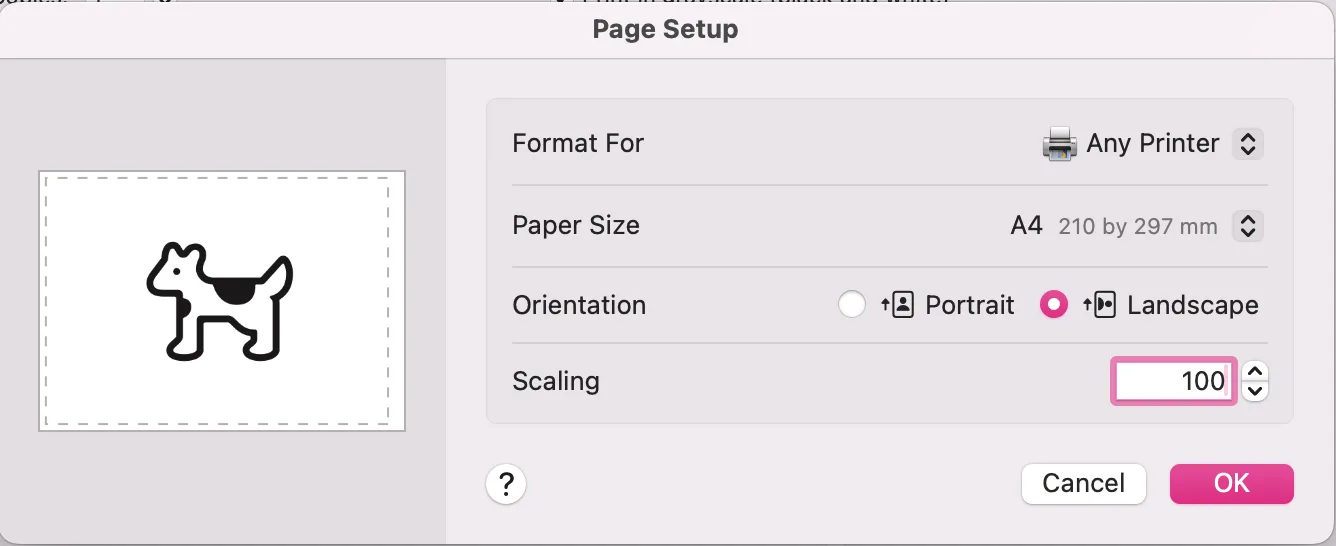
In the printer or page setup settings:
- Paper size: A4 (297 × 210 mm)
- Orientation: Auto or Portrait
Even though the booklet will end up as A5, the printer must be set to A4 so it can place two pages on each sheet.
Step 4: Double-Sided Printing Options
If Your Printer Supports Duplex Printing
If your printer can print on both sides automatically:
- Select Print on both sides
- Choose Flip on short edge
This setting ensures that when the pages are folded, the text is upright on both sides.
If the back pages print upside down, switching between short edge and long edge usually resolves the issue.
If Your Printer Does Not Support Duplex Printing
If your printer prints one side at a time:
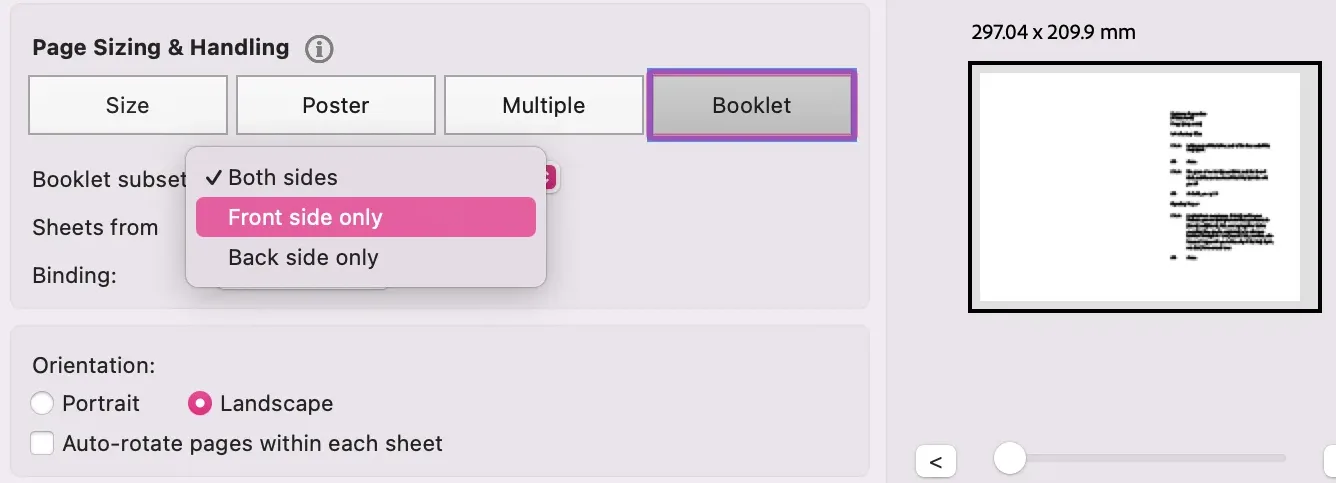
- In Booklet subset, select Front side only
- Print the pages
- Reinsert the printed sheets into the printer tray as directed by your printer
- Return to print settings and select Back side only
- Print again
Using a test print first can help you determine how your specific printer feeds paper.
Step 5: Check Scaling
Set Scaling to 100%.
Avoid options like “Fit to page” or “Shrink oversized pages,” as these can change margins and affect how the booklet folds.
Step 6: Print and Fold
Once printed:
- Keep each A4 sheet together
- Fold each sheet in half to create an A5 booklet
The pages should fall into the correct order automatically, with the cover on the outside and the inner pages nested correctly.
Common Issues to Watch For
- Pages out of order: Confirm that “Booklet” is selected, not standard double-sided printing.
- Upside-down backs: Adjust the flip edge setting.
- Margins too tight: Check that scaling is set to 100% and paper size is A4.
Final Notes
Printing an A5 ceremony booklet at home relies on using booklet print settings rather than manual page arrangement. By printing two A5 pages onto A4 paper, selecting the correct binding and flip options, and folding after printing, you can produce a clean, readable booklet with minimal setup. A short test print can help avoid wasted paper and confirm orientation before printing final copies.