
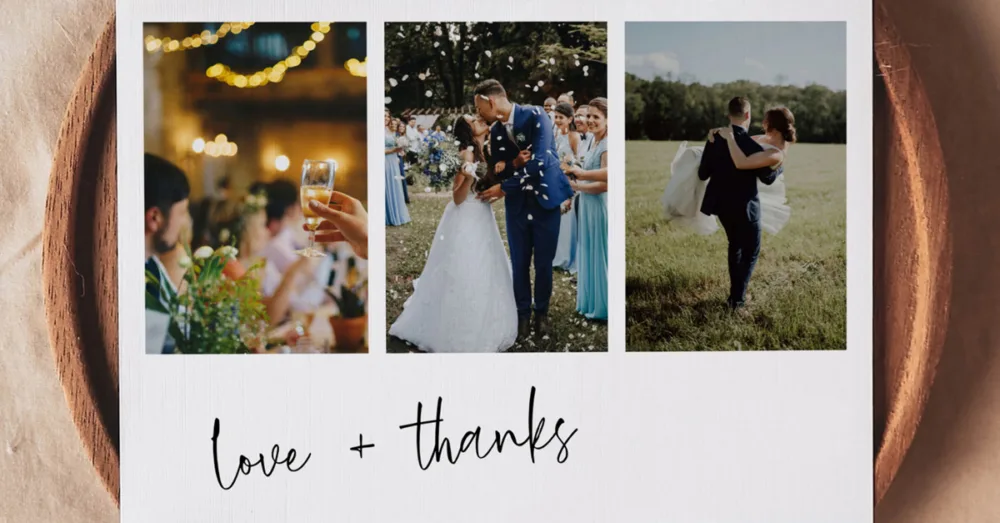
❗️Important: These instructions are for customers who purchased templates from The Hello Bureau. If you bought a template elsewhere, please refer to your original seller for guidance. We are unable to assist with templates that were not created by us.
A note on how clipping masks work
All our templates with replaceable photos use clipping masks. This means your image will automatically fit into a predefined shape and stay aligned with the design. Occasionally, Templett may take a moment to update or behave inconsistently when replacing images.
If the placeholder does not respond as expected, it usually helps to go to File > Revert and try again. This resets the template and often resolves the issue.
Replacing the placeholder image
Step 1. Upload your photo using the Elements panel on the left side of the canvas. High-resolution JPG files work best for print quality. Please note: Templett does not have in-editor photo editing or cropping capabilities. It’s best to edit your image before uploading.
Step 2. Once uploaded, click the image once in the Elements panel to place it onto the canvas. There may be a brief delay while the image loads.
Step 3. Click and drag your image over the existing placeholder. When positioned correctly, the image will snap into the frame.
Step 4. Double-click the image to adjust its position within the shape.
If the image does not snap into place, reposition it and try again. A reset via File > Revert can help if the placeholder stops responding.