
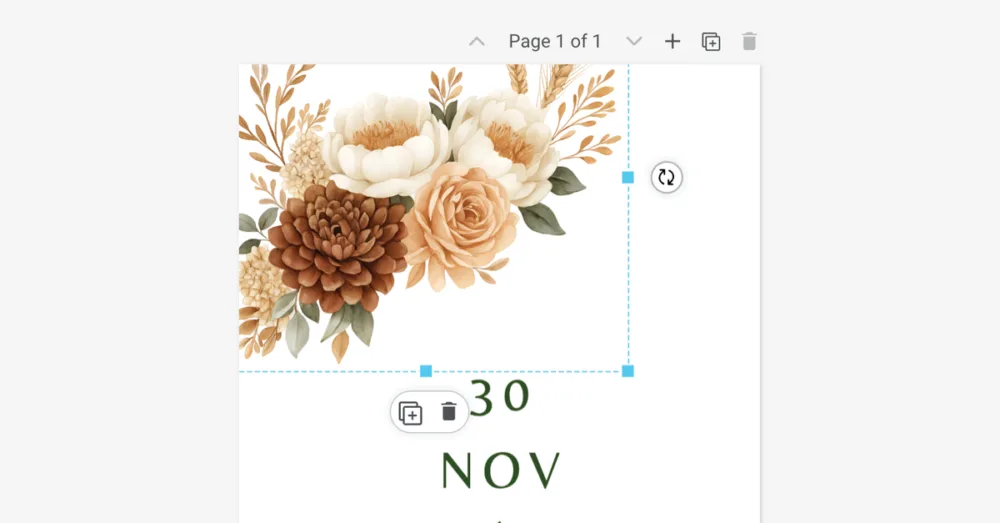
Templates created in Templett lets you add decorative images, such as florals, illustrations, or icons, while editing the design. I’ve written this article to outline the available image sources and how to place them into your layout.
Image options in Templett
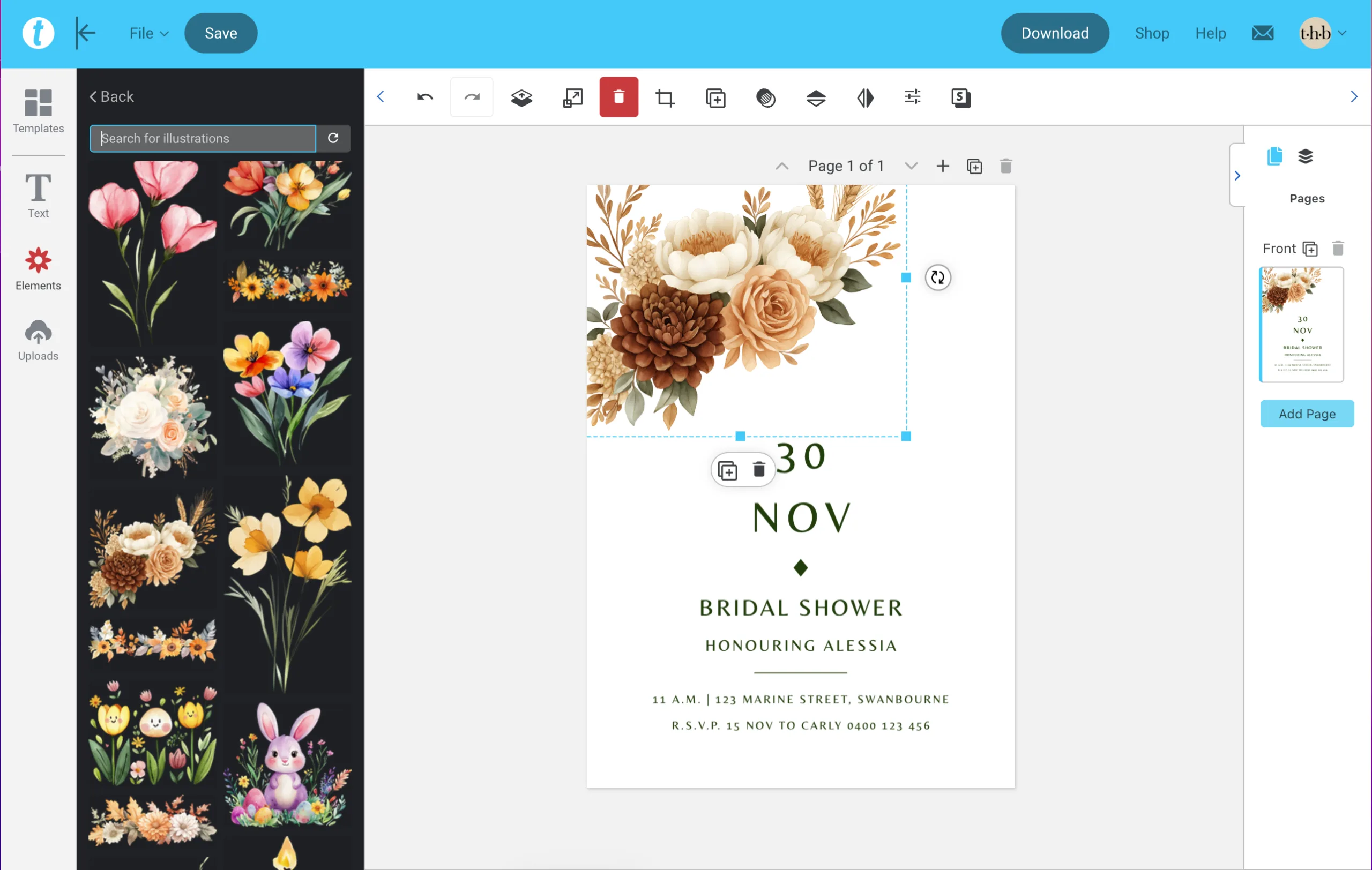
1. Using Templett’s free illustrations
Templett includes a library of free clip art and illustrations for your convenience.
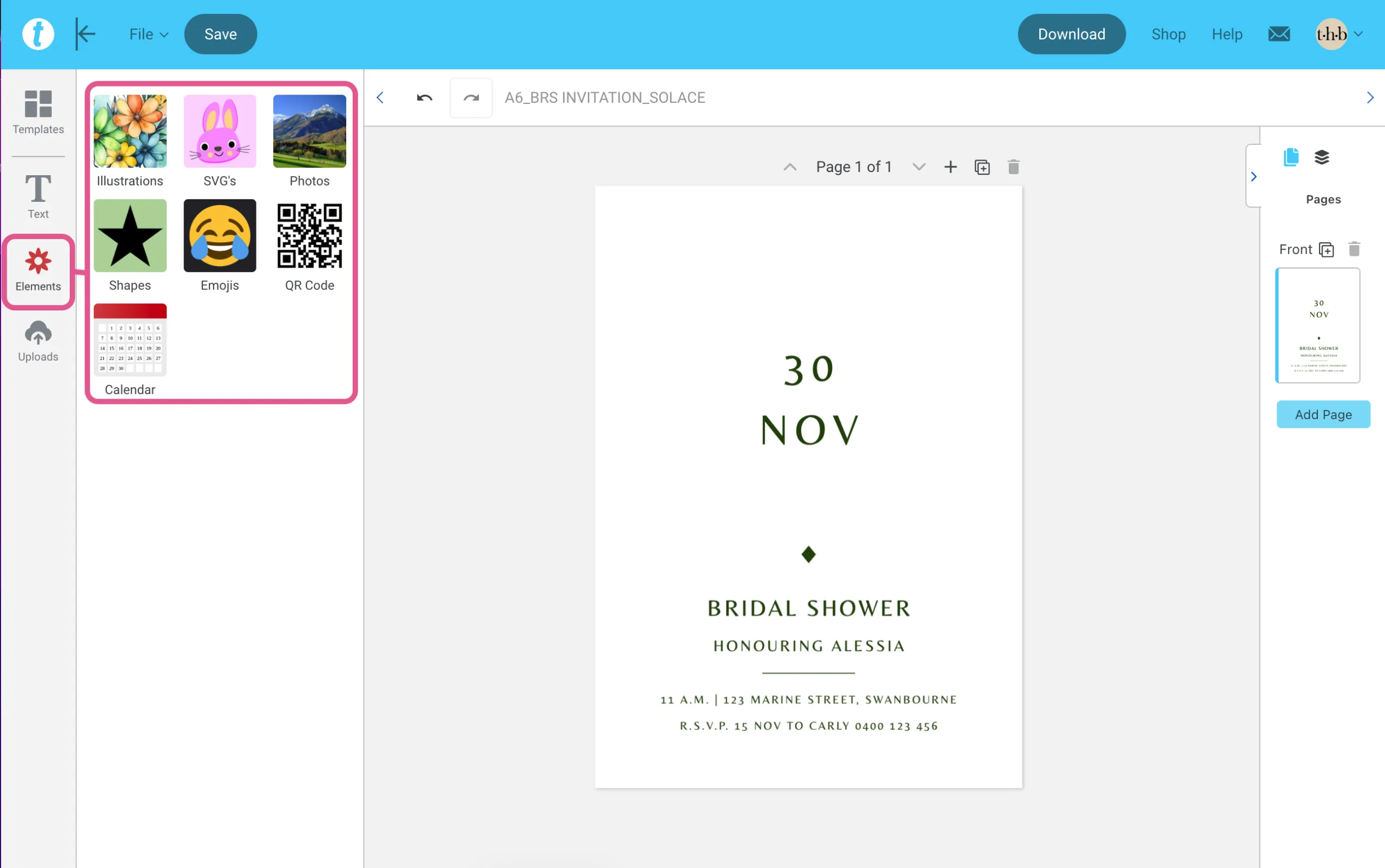
- Open the Elements panel on the left-hand side.
- Select Illustrations to browse the available artwork.
- Click an illustration once to add it to your canvas.
2. Purchasing illustrations from the Templett shop
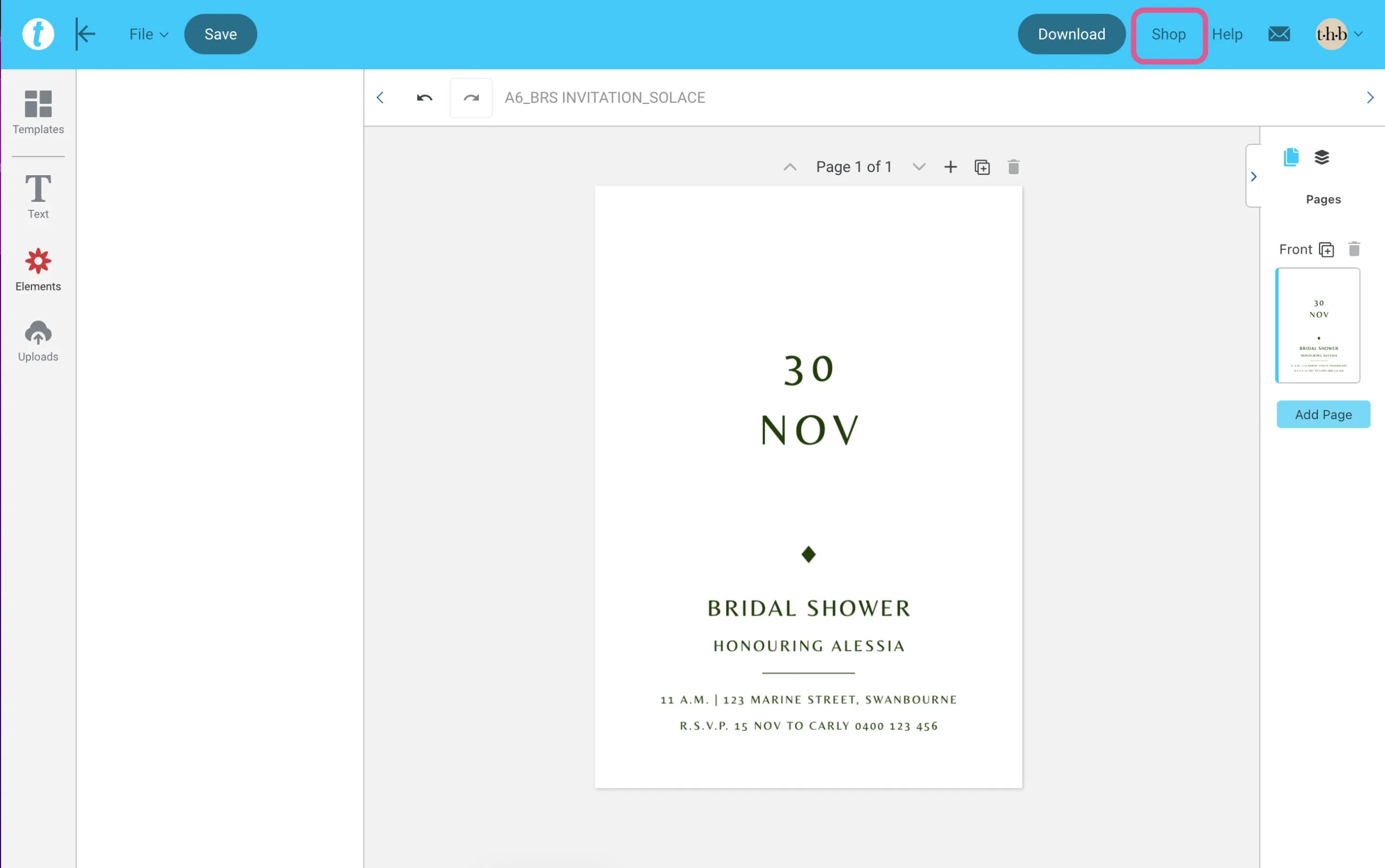
Templett also offers paid illustration packs through their shop.
- Purchased elements are added directly to your Templett account.
- These items will appear alongside your other elements for future use.
3. Uploading your own images
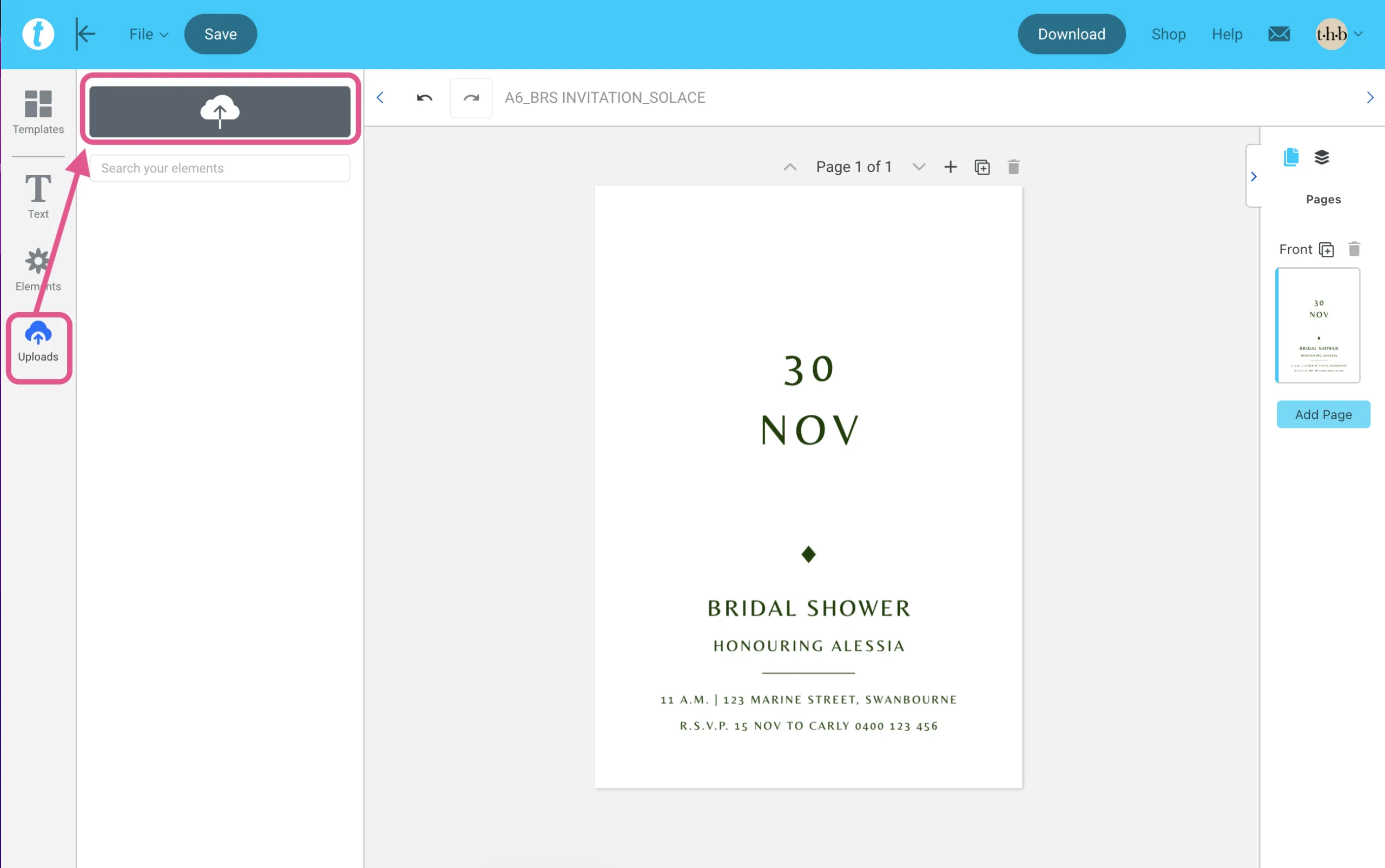
If you already have custom artwork, you can upload it to Templett. You can find their official guide on uploading images here.
- Use the Uploads panel to upload your files.
- PNG and SVG files work best for decorative elements.
- Uploaded images are saved to your account for reuse.
Positioning and resizing images
Once an image is added to the canvas, you can move and resize it freely.
- Click and drag to reposition the image.
- Use the corner handles to resize proportionally.
Images added this way are not clipped to a shape and will sit freely on the design.
Notes on image file types
- JPG images will always include a background. When added to a template, this background will appear as white.
- For transparent backgrounds, PNG or SVG files work best.
- If you’re using JPG artwork intended to sit over colour or texture, it’s best to convert it to a transparent PNG before uploading.