Editing Templates

Filter posts by category

How to Add Image Elements to Your Template

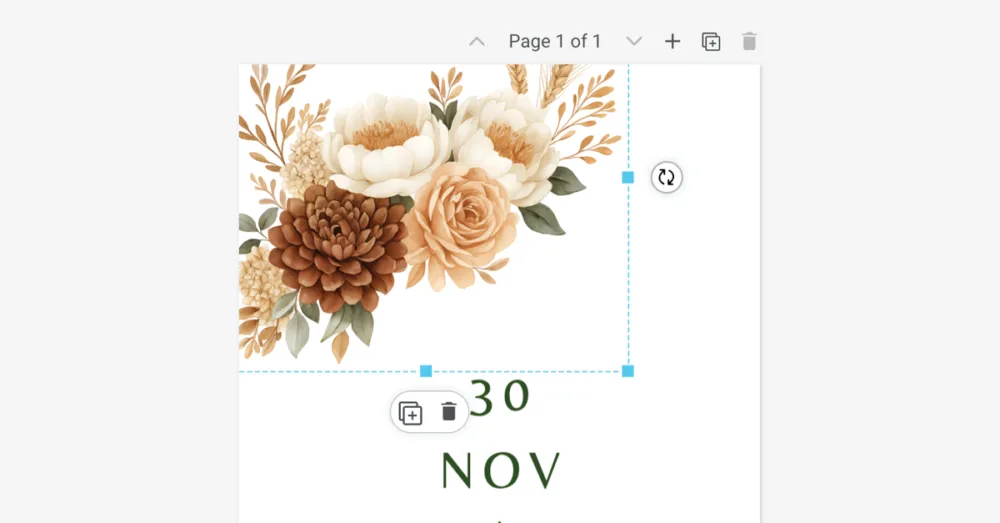
Our templates let you add decorative images, such as florals, illustrations, or icons, while editing the design. This article outlines the available image sources and how to place them into your layout. Image options in Templett 1. Using Templett’s free illustrations Templett includes a library of free clip art and illustrations for your convenience. 2.

Using Photo Placeholders (Clipping Masks) in Templett

A note on how clipping masks work Photo placeholders in Templett use clipping masks. This means your image will automatically fit into a predefined shape and stay aligned with the design. Occasionally, Templett may take a moment to update or behave inconsistently when replacing images. If the placeholder does not respond as expected, it usually

How to Edit Your Printable Seating Chart Template

Creating your own printable seating chart with our templates is pretty simple — especially when you know the copy-paste trick. This step-by-step tutorial will show you exactly how to transfer your guest list from a spreadsheet (or Word doc) into your seating chart template using Templett. Whether you’ve got 5 tables or 15, the process

How to Add a QR Code to Your Template

All of our printable templates are editable in Templett, which makes it easy to personalise your design. This includes adding a QR code for things like websites, RSVP forms, maps, social media, or gift registries. There’s no need for extra apps or downloads to get a QR code. Templett has a built-in QR code generator

How to Add Background Colours to Your Template

Adding a background colour to your design is a simple way to create contrast, highlight text, or match your stationery to your event’s colour palette. Just keep in mind — whatever background colour you choose will be printed. We’ll be using our Lumen Welcome Sign template for this tutorial. The editing process is done in

Scroll to Top