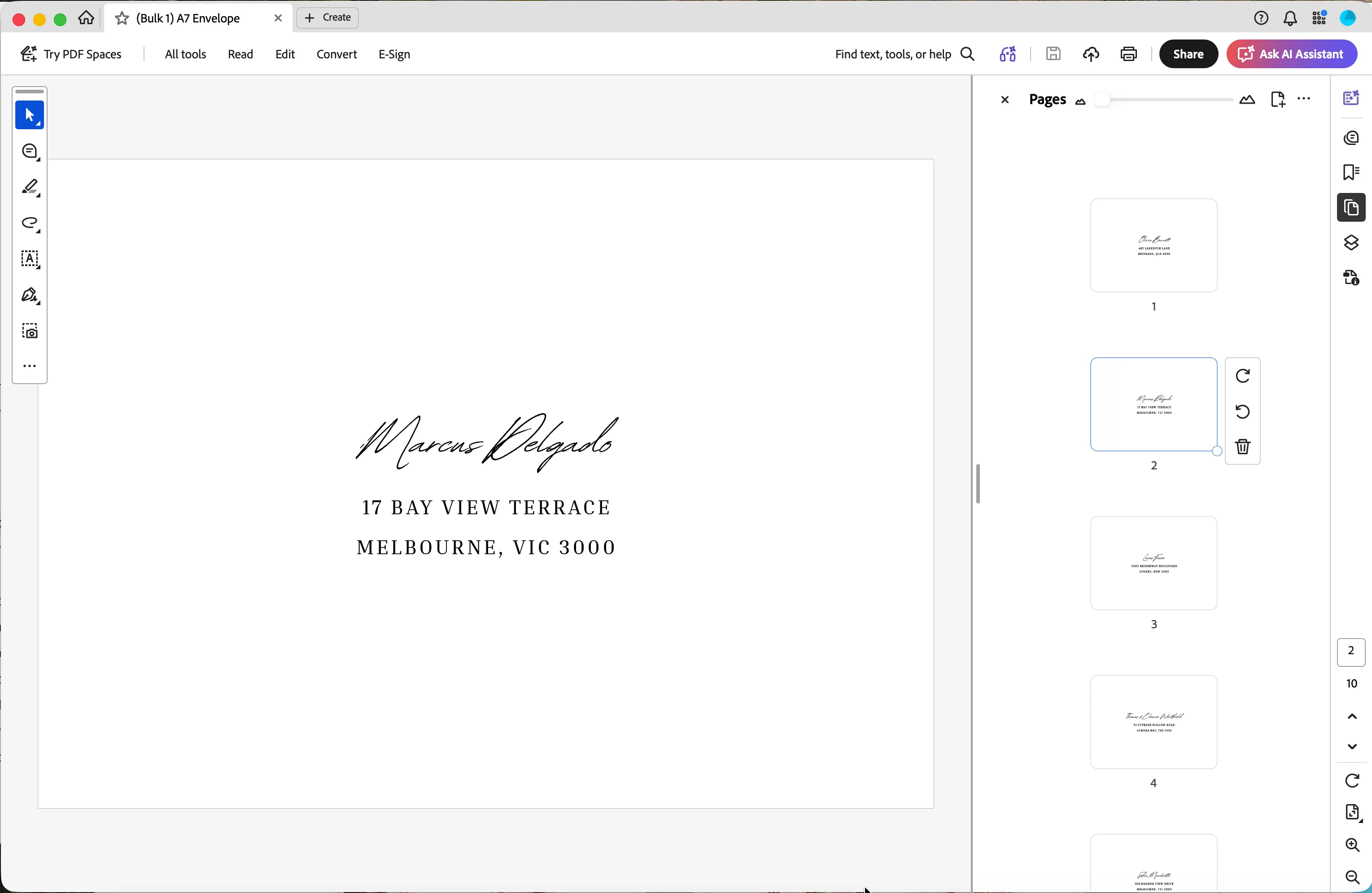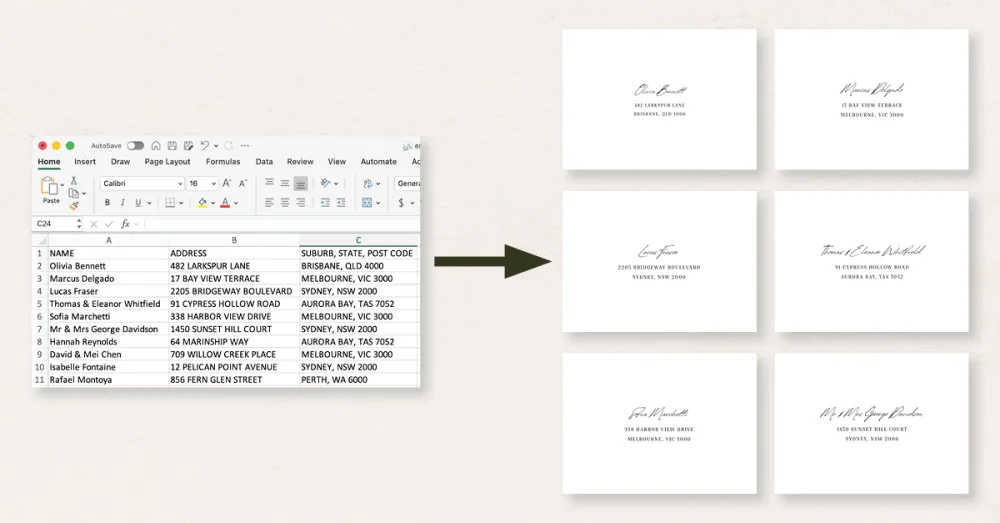
If you have Canva Pro, bulk create saves you from typing each address by hand. It autofills every envelope straight from a spreadsheet, so you only have to set up your design once. This guide walks you through setting up a spreadsheet for bulk addressing in Canva to downloading a print-ready PDF.
Please note: This function currently only works on laptop and desktop computers. For more detail, see Canva’s official bulk create guide.
What you need before you start
- Canva Pro (this function is not available on free accounts)
- Your envelope addressing template in the same dimensions as your envelope
- Access to a spreadsheet program (Excel or Google Sheets)
Step 1: Prepare your spreadsheet as a CSV file
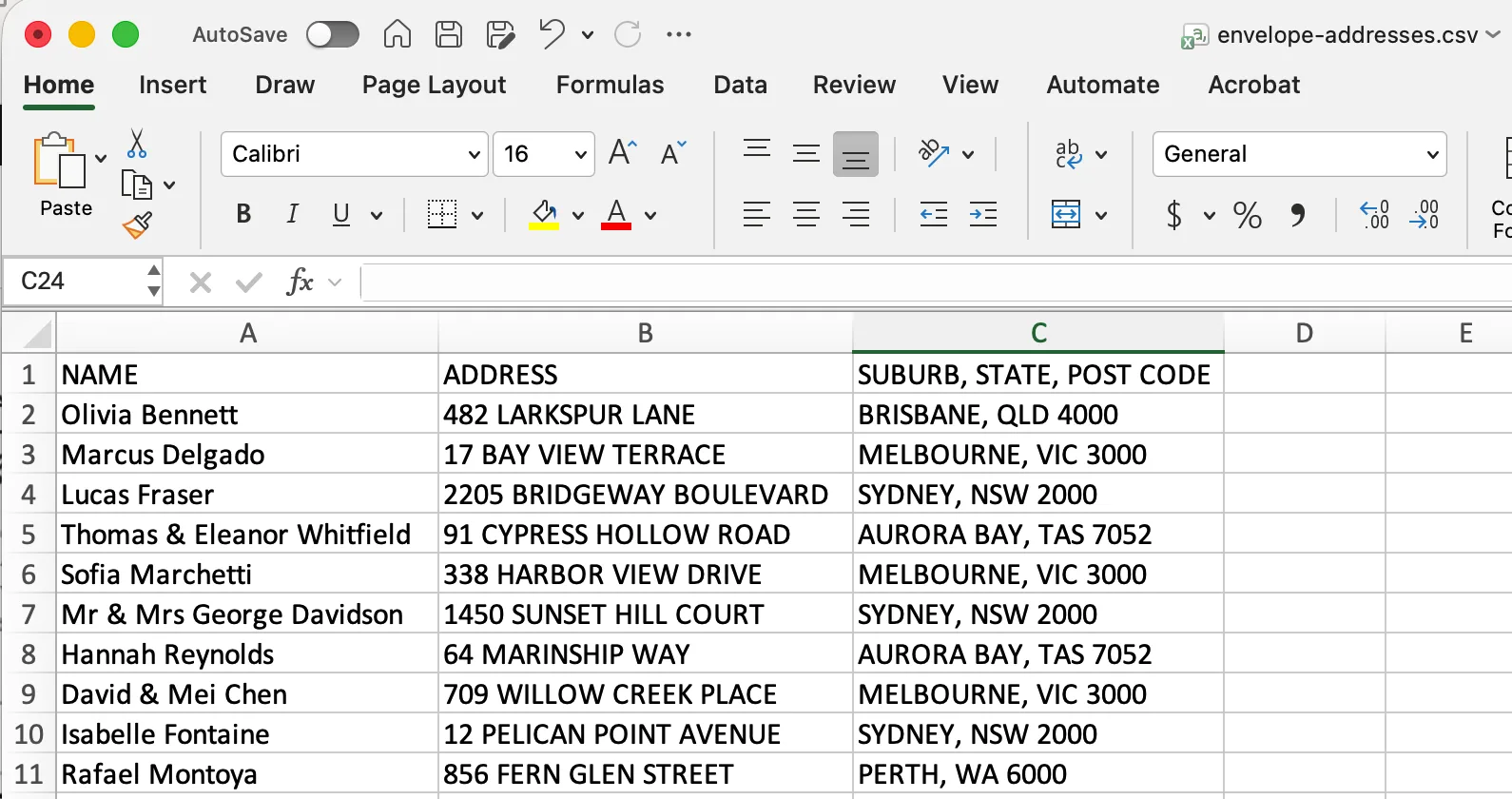
Set up your columns in Excel or Google Sheets based on how you want to import the data. In this example, we have three text boxes in our template, so there are three columns. The first holds the name, the second holds the street address, and the third holds the suburb, state and postal/zip code.
- Give each column a header. The header name is what you will use to connect your data in Canva, so choose names you’ll recognise.
- Use one row for each envelope.
- Type your names and addresses the way you want them printed, such as upper case or lower case. Your template may already change your text to all capitals, which can override what’s in the spreadsheet. To turn that off, click the text box, then click the case icon (aA) in the toolbar.
- When your list is ready in Excel or Google Sheets, use Save As or Download and choose .CSV (Comma Separated Value), which is the file format you upload to Canva.
- Canva’s bulk create limit is 300 rows per run, so you may need multiple CSV files for large guest lists.
Step 2: Access the bulk create function
With your template open in Canva, you can find bulk create from the Apps panel. This is where you will upload your CSV file.
Click Apps in the sidebar, then search for or scroll to Bulk create.
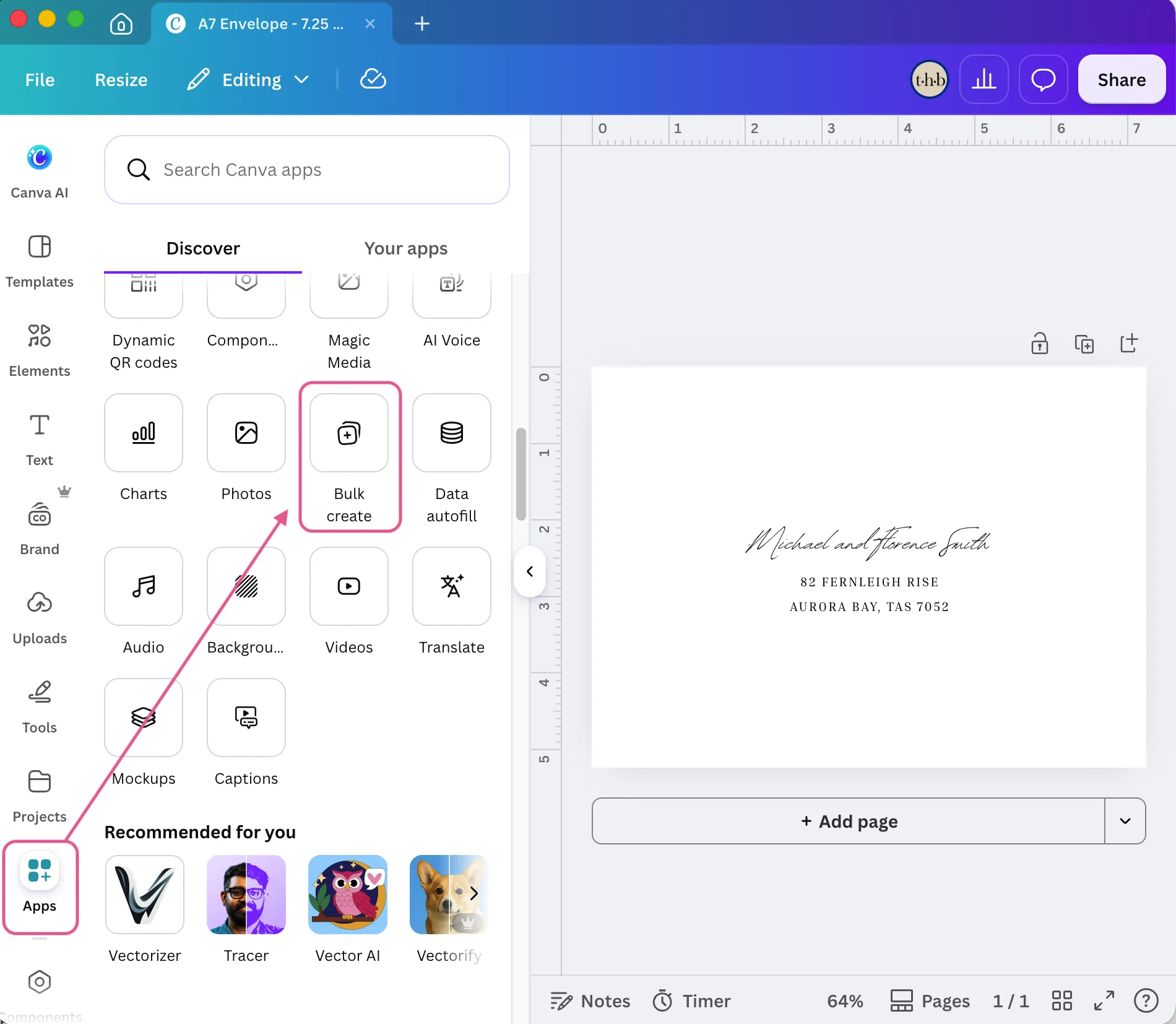
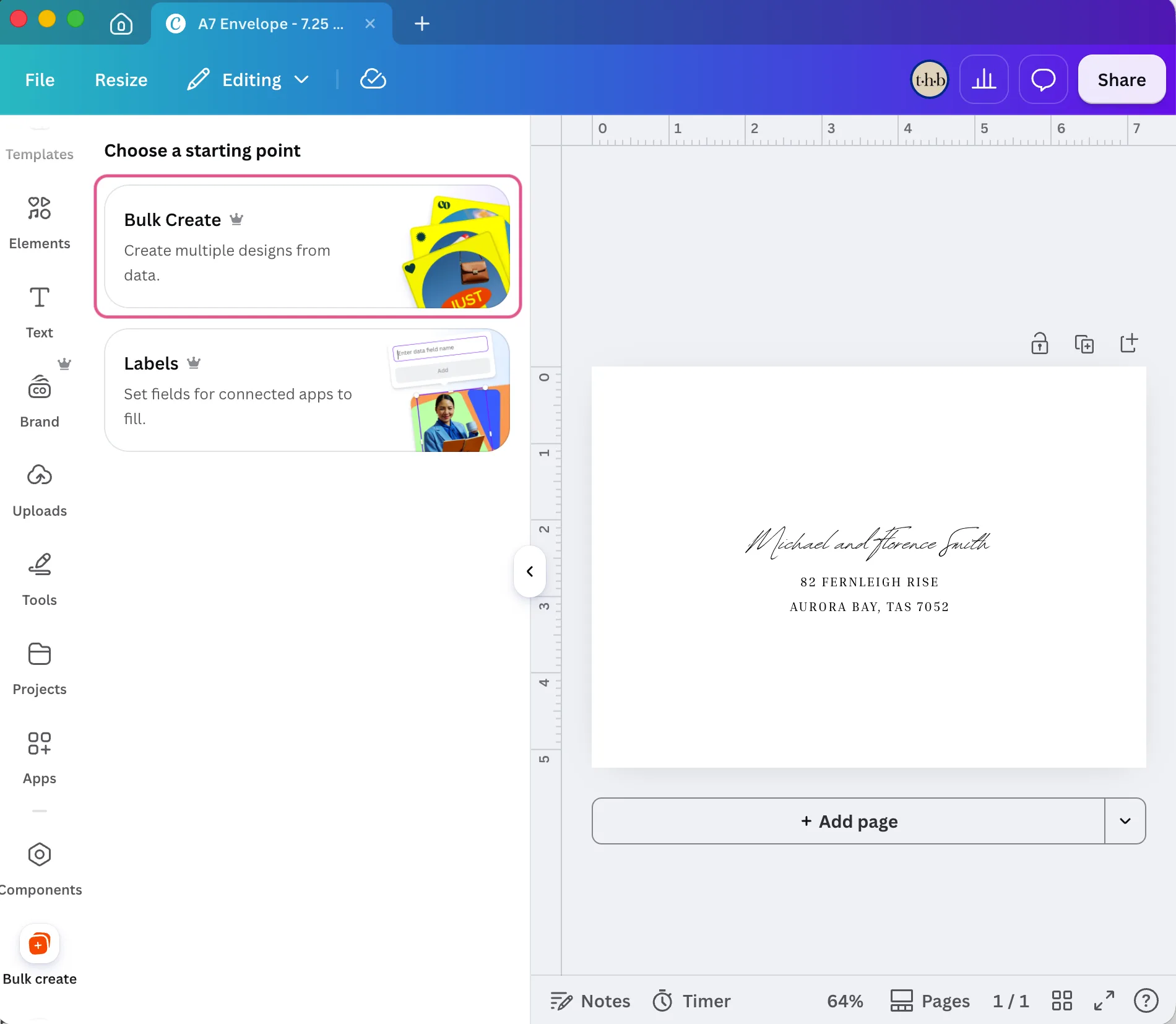
Choose Bulk Create as your starting point on the next menu.
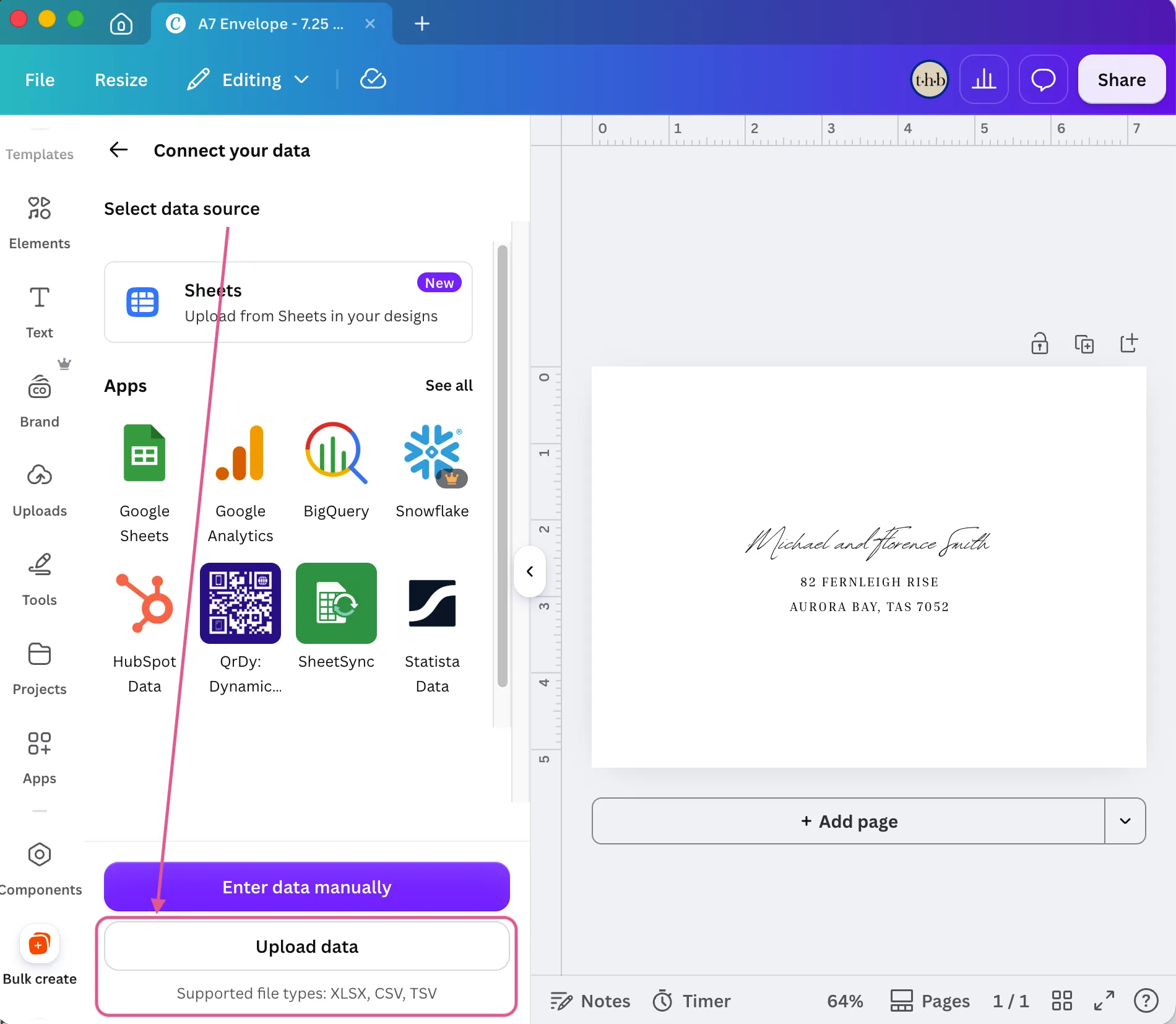
In Select data source, click Upload data, then choose your CSV file.
Look for your column headers in the Match and fill fields panel on the next menu. Seeing your headers listed here as fields means your upload worked. Each one is ready to connect to a text box on your template.
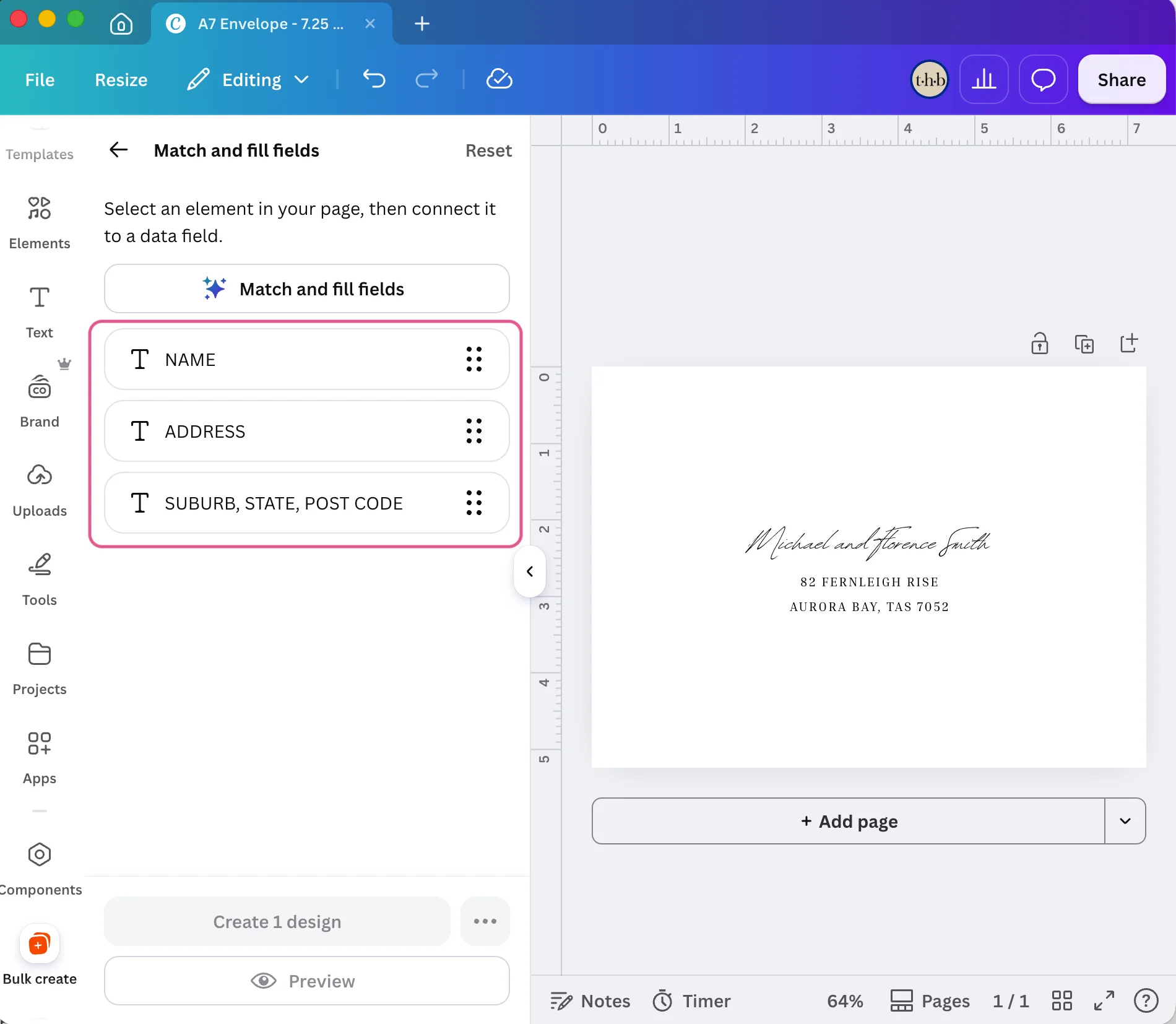
Step 3: Connect your data fields
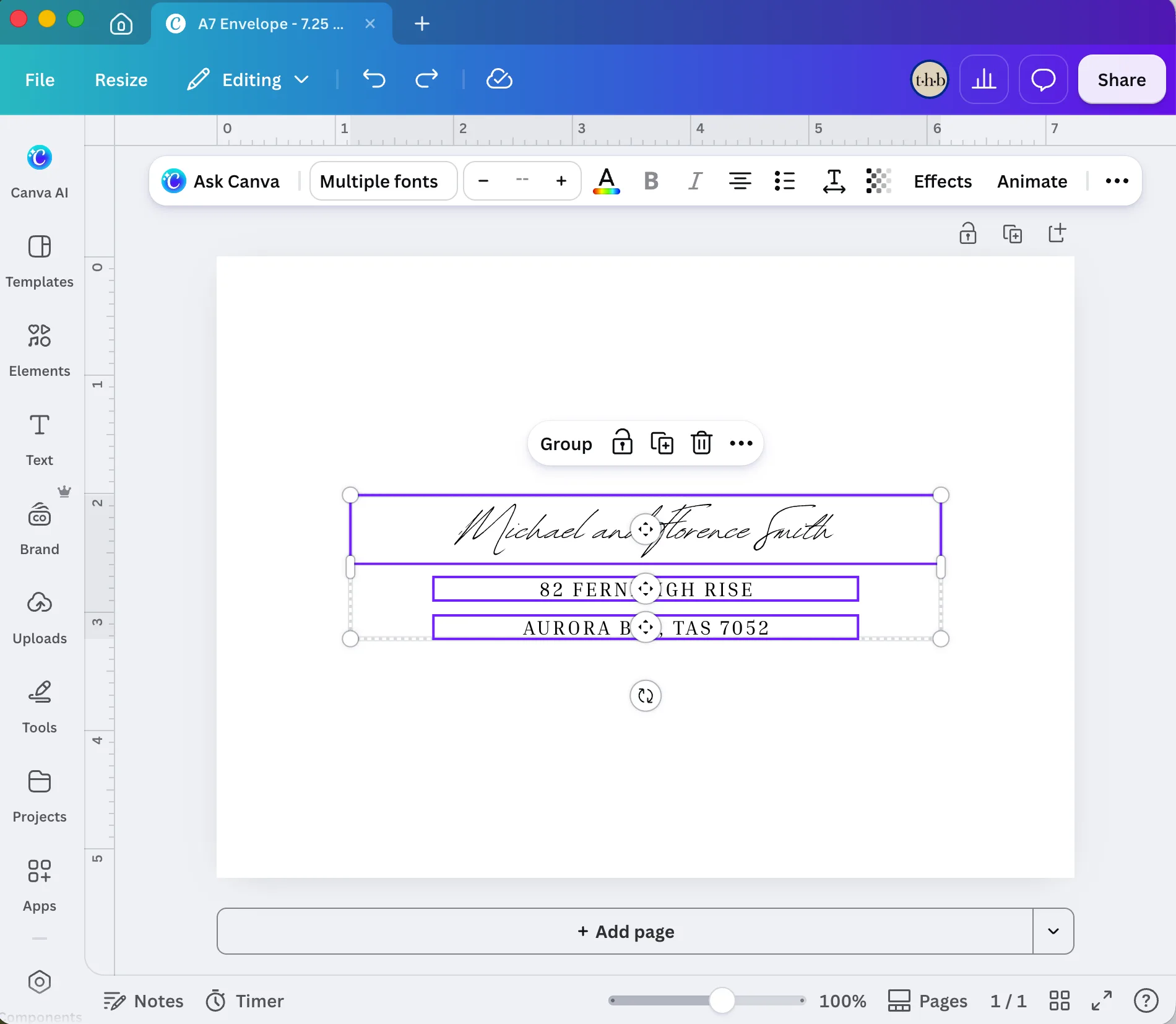
Each text box needs to be matched to a field from your spreadsheet. Before you do that, we recommend dragging out your text boxes to the margins, so your longest addresses fit.
Design tip: Find the longest name and address on your list, then type them into your text boxes. Adjust the font sizes until they fit. If the longest ones fit, every other name and address will too.
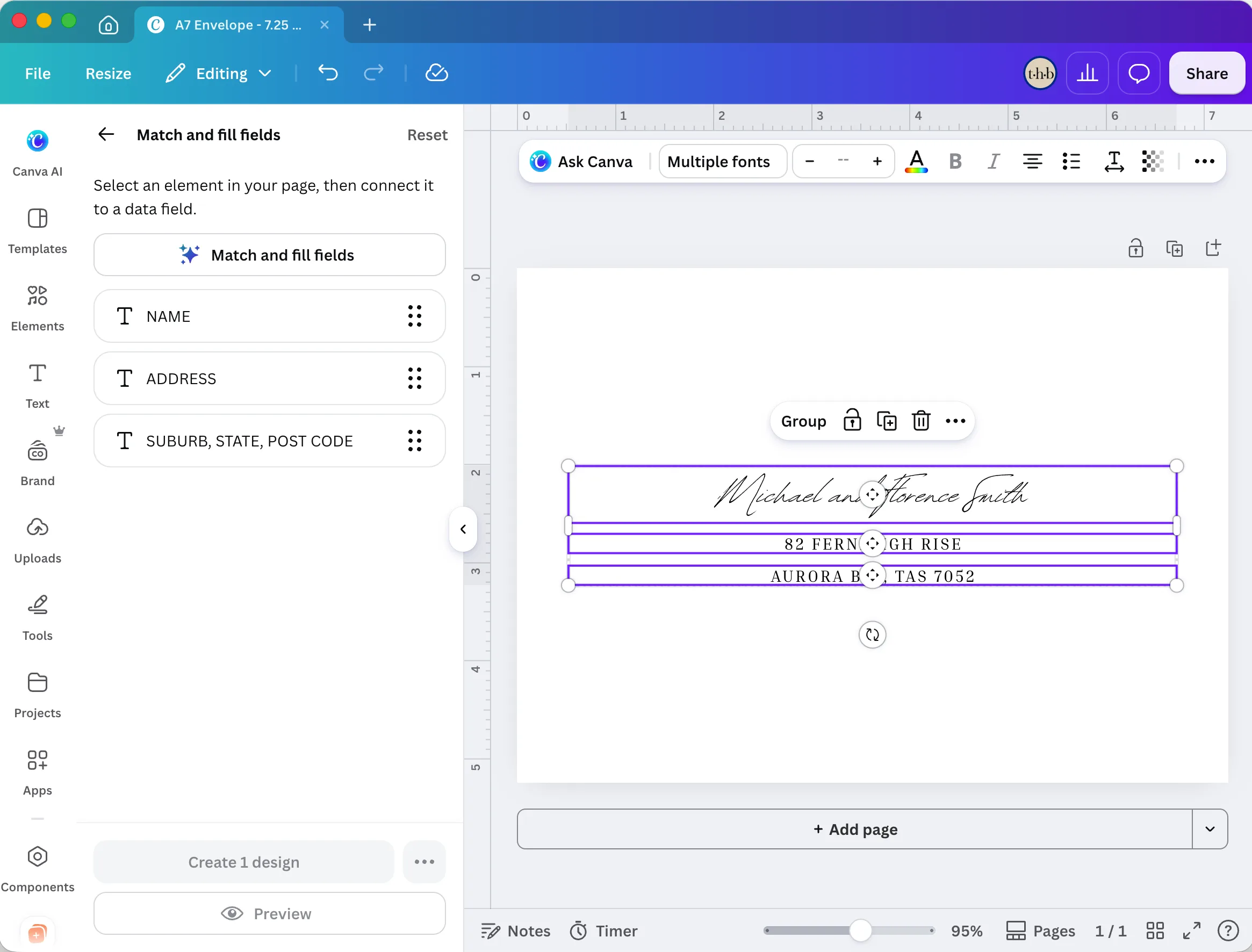
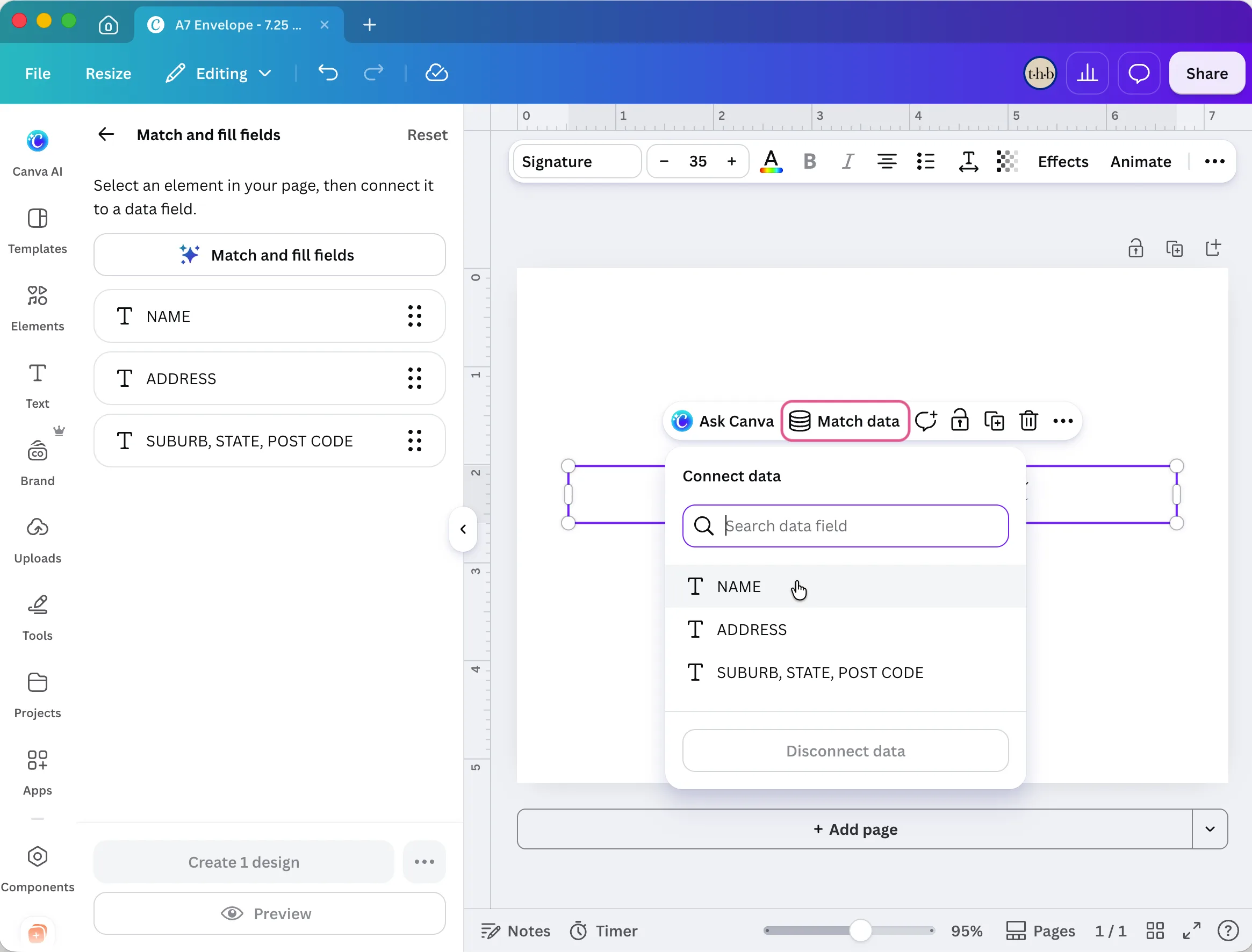
Click on a text box and select the Match data option. Then click on the corresponding field in the dropdown list, such as NAME for your name text box.
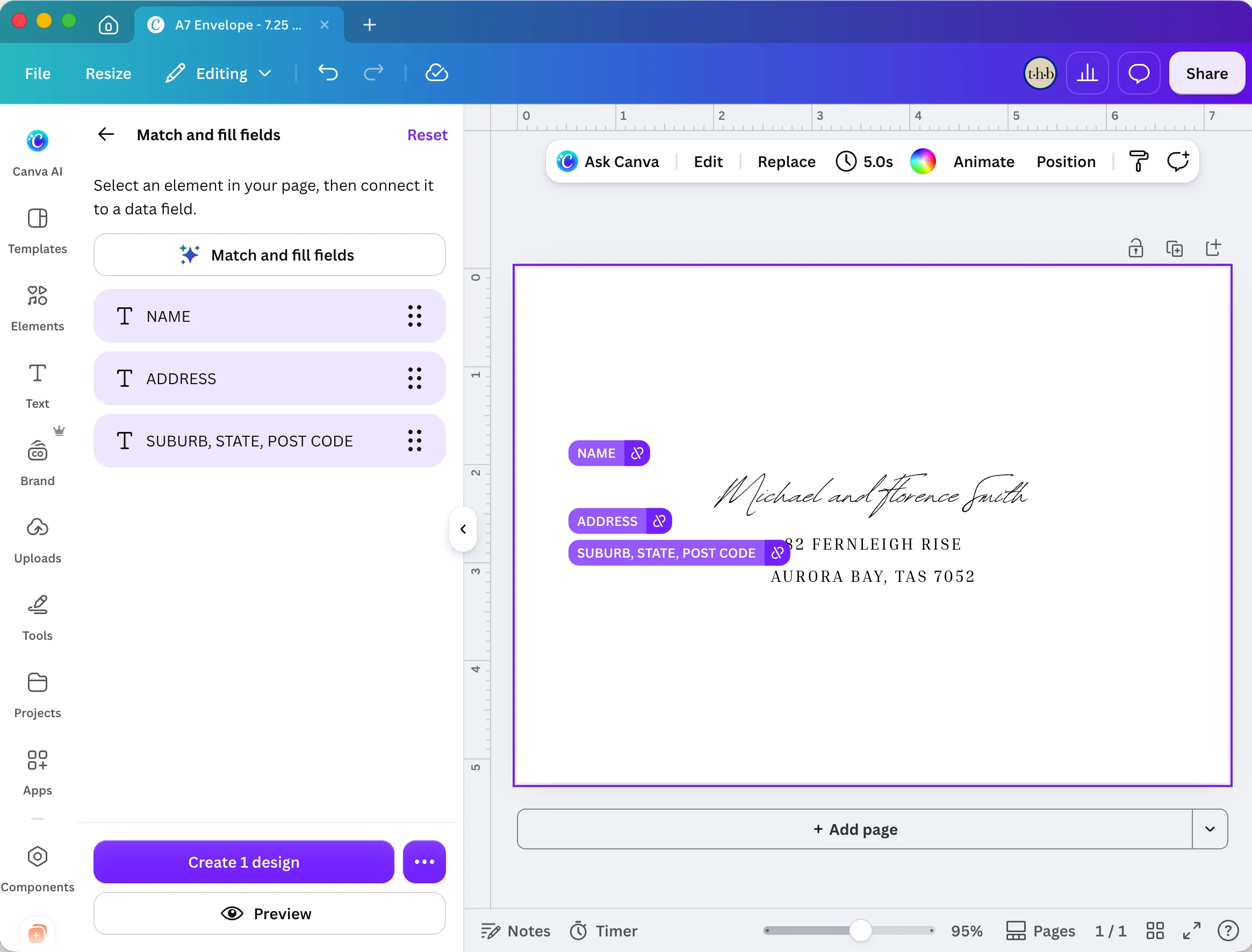
Repeat for all your text boxes. Once every box is connected, your template shows each linked field in purple and the Create button becomes active.
Step 4: Preview and create your designs
A quick preview shows you exactly how your envelopes will look before you create them.
Click Preview and a screen will pop up with all your names and addresses. Use the arrows to flip through each design.
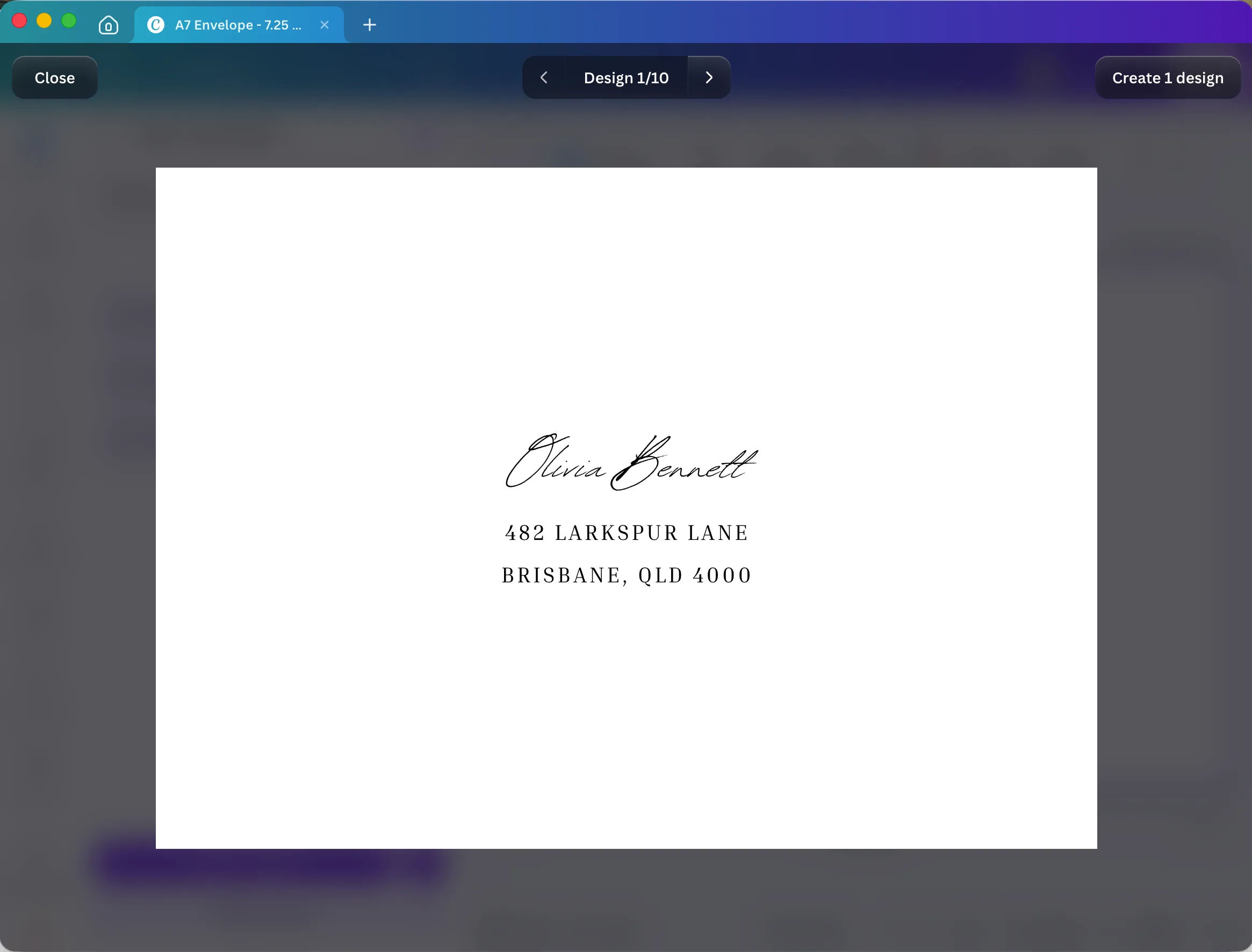
Once it all looks good, click Create 1 design. Canva then opens a new document with all your addresses, ready to download as a PDF.
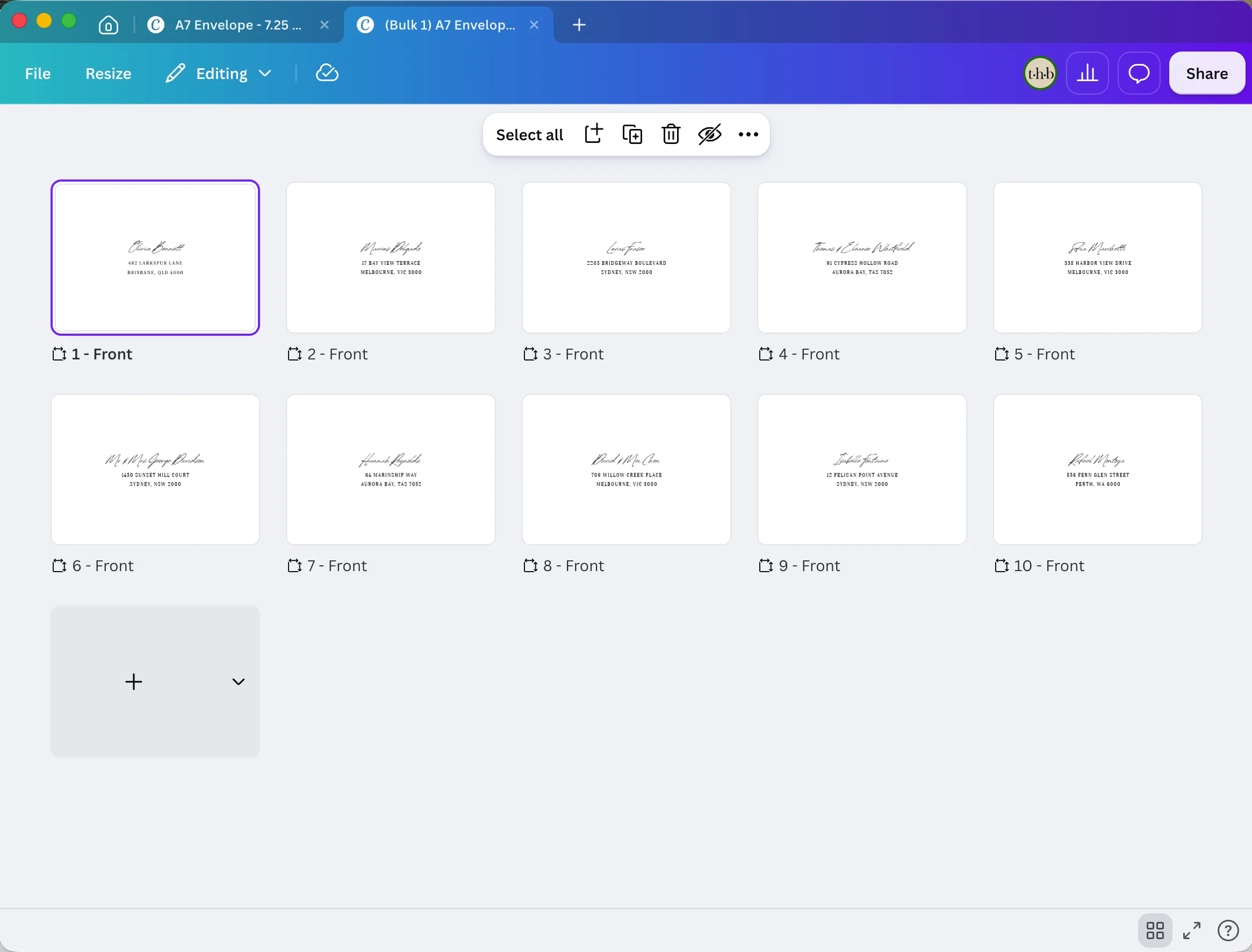
Step 5: Download your PDF for print
In your new document, click Share then Download. Choose PDF as your file type and Print as your preset. Select the CMYK colour profile. Click Download.
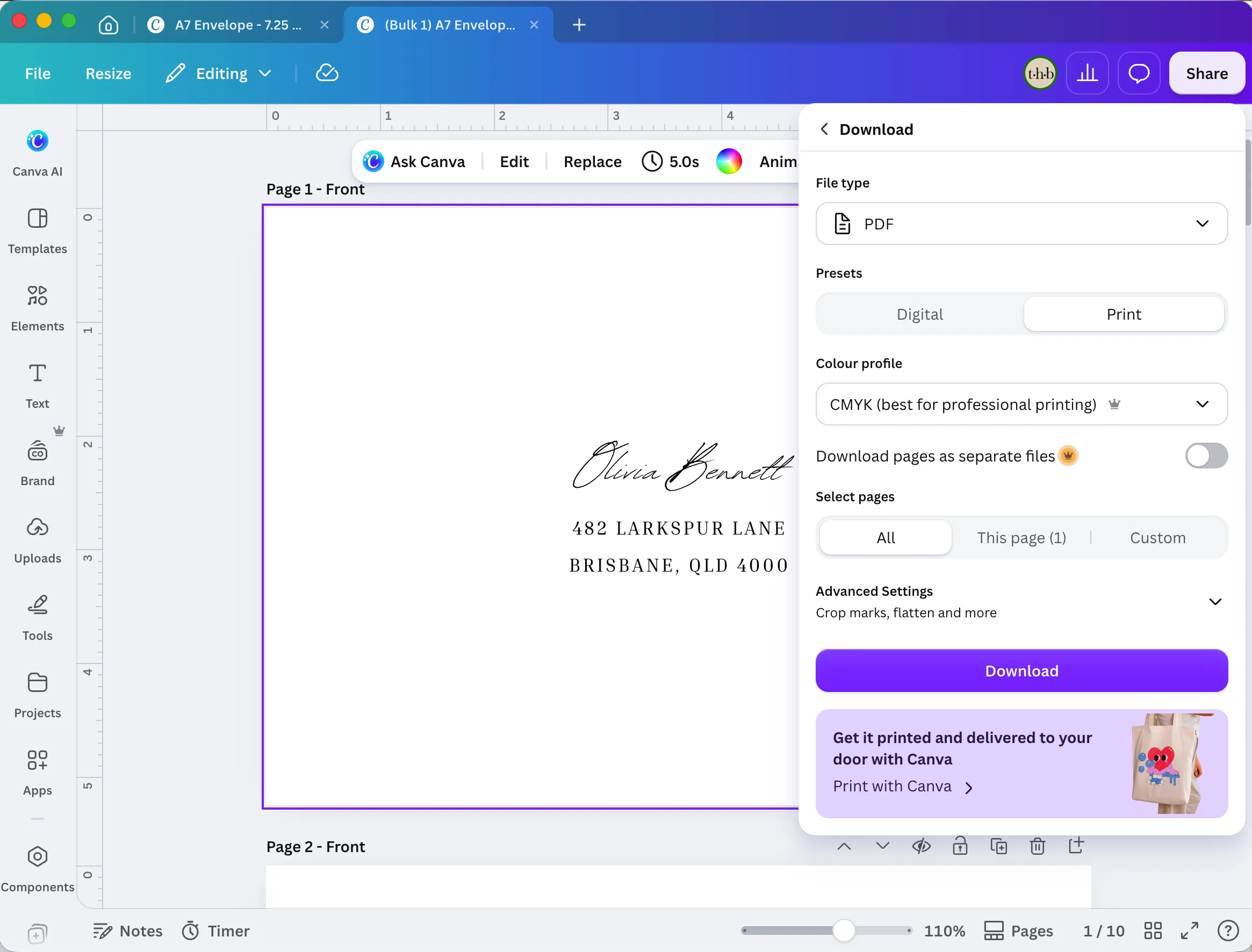
A multi-page PDF will download with one address per page, ready for printing.